7/12/2009
Windows Vista’s Disk Defragmenter Help!
For the last couple months I've been troubleshooting a vexing problem on my new quad-core HP desktop: Roughly once per week, the machine would start running as slow as molasses.
And I mean slow: Programs would take several minutes to load, and even simple activities like switching browser tabs were maddeningly sluggish. The system slowdowns appeared to be due to excessive disk activity, at least based on my observations of Windows' Resource Monitor (CPU and RAM activity were more or less normal). Curiously, this behavior would last for several hours, and then the system would be back to normal.
Knowing a thing or two about PCs, I tried all kinds of remedies. I checked for viruses and spyware. I ran memory and hard-drive tests. I uninstalled a few potentially culpable (or so I thought) programs, including HP's junkware. I even disabled a few Windows services (like Search and SuperFetch), which some fellow users suggested could be to blame.
Nothing worked. I even went so far as to wipe the hard drive and reload Windows (Vista x64, in case you were wondering), even though the system was barely a month old. That did the trick--for about a week.
Disk Defragmenter Issue or Vista Glitch?
This got so irksome that I started venting about it on Facebook. And that's when an old high-school buddy (you rock, Scooter!) came to the rescue. He suggested I check Windows' Disk Defragmenter. Sure enough, it was set to run on a schedule, and the last time it ran matched up with the most recent slowdown.
Suddenly it all made sense: The non-stop hard-disk activity, the out-of-the-blue recurrence of the slowdowns, and the eventual return to normal. The only thing I couldn't figure out was why I never spotted Disk Defragmenter when I was poking around Task Manager. It was as though it was running so far behind the scenes as to be invisible.
I've since disabled the feature, and to date I haven't had a single slowdown. Granted, it's barely been two weeks, but I'm 98 percent sure this was the root of the problem.
What about keeping my hard drive defragmented? I can do that manually, once a month or so, on my schedule. In the meantime, where do I file a bug report with Microsoft? I suspect this might be a glitch in the 64-bit version of Vista.
Alternatives to Vista's Defrag Tool
Hard drives do indeed get fragmented over time, which is why defrag utilities exist. I'm so done with Microsoft's, but in an impressive display of perfect timing, our own Preston Gralla just wrote up a splendid (and free) alternative: Smart Defrag. Most attractive feature: "Auto Defrag, which defragments your hard disk only when you computer is idle, so that you don't interrupt or slow down any work."
Preston also recommends Defraggler, which he says is better than Windows' own defragment utility in several ways. First off, this download scans your disk faster, which anyone with a large hard disk will certainly welcome. In addition, it can defragment individual files instead of your entire hard disk, and it's more entertaining to watch than the built-in utility.
Need even more options? Auslogics Disk Defrag is another popular freeware defragger. You might also want to browse our file collection, "Low-Cost Utilities Defrag RAM and Hard Drives."


Quick Fixes and Troubleshooting Tips
Troubleshoot PC Performance With ProcessScanner
Try this: Press Ctrl-Alt-Del (and then click Task Manager, if you're running Windows Vista), then click the Processes tab. Ever wonder what all those items are? You should, especially if you're trying to troubleshoot a slow or malware-infested system. The list represents every single process that's currently running--good, bad, and potentially dangerous. Of course, you'll be hard-processed to figure out just what all those processes actually are. Enter ProcessScanner, a free utility that scans your PC and gives you a detailed report about each process: how much memory it's using, whether it's a security threat, and so on.
The program pairs with ProcessLibrary.com (where you can type the name of any individual process and get an instant description), tapping the latter's database to present detailed scan results in a browser window.
Upon reviewing the report, you may find apps you want to uninstall to improve performance or even malware that needs to be eradicated. This is definitely a worthwhile tool for any diligent Windows user. I just made it a permanent addition to my utilities arsenal.
A Quick Fix for Slow Internet Access
This morning a neighbor asked me if my Internet access was really, really slow the last couple days. (We subscribe to the same ISP.) I said no, it's been just fine. Then I offered him the same suggestion I offer most folks who complain about connectivity problems: power-cycle your modem and router.
In other words, disconnect the power cords from both, wait about 10 seconds, and then plug them back in. In a minute or two, your network will be up and running again, and your Internet access might be its good old speedy self. I say "might be" because there are loads of other possible culprits for pokey Internet connections.
For example, you might have a spyware problem. Windows' Internet settings might be FUBAR (or at least less than optimal). If you're connecting via a wireless router, there could be range issues (see "How to Troubleshoot Your Home Network" for help with that one).
In most cases, however, it's probably just a router and/or modem in need of rebooting. For the record, my neighbor told me the power-cycling trick worked like a charm. Hmm, maybe I should send him a bill?
Open .docx Files Even if You Don't Have Office 2007
Another version of Microsoft Office, another set of file-compatibility hassles. (No, really, thanks a ton, Microsoft.) Office 2007 brought with it the Docx format, which can't easily be opened by anyone who doesn't also have Office 2007.
Option #1: Install the succinctly named Microsoft Office Compatibility Pack for 2007 Office Word, Excel, and PowerPoint File Format. It enables older versions of Office to open Office 2007 documents, and it does all the necessary conversion behind the scenes: no input required from you. (Just make sure you've installed the latest service pack for your version of Office, otherwise the Compatibility Pack won't work.)
Option #2: If you're a Firefox user, install the OpenXML Viewer extension, which lets you open Word 2007 files right in your browser with all the formatting and layout preserved. You can't edit the document, but at least you'll be able to view it.
Option #3: Upload the file to Docx Converter. In short order you'll receive an e-mail with a link to converted version of the file.
Boot Faster With Startup Delayer
Think about what would happen at the airport if every plane tried to take off at the same time. Chaos, that's what. And yet that's the situation when a Windows PC boots: Every installed program tries to run itself at virtually the same time. As a result, your once-peppy machine can take 5 or 10 agonizing minutes to start up. What you need is a little air-traffic--make that software-traffic--control.
Enter Startup Delayer, which does exactly what its name suggests: delays startup programs so they don't run until later. The end result: Your PC boots much more quickly.
The utility presents you with a list of all the programs that start when your system does. To set a delay for any of them, just drag it to the white bar at the bottom of the window. You'll see a line representing the program; drag it left or right to decrease or increase the delay. Repeat this for other programs you want to postpone.
For example, if you have iTunes installed, you'll see a startup program called iTunesHelper.exe. Unless you plan to connect your iPod or run iTunes the moment your PC boots, why not delay this applet for four or five minutes? Same goes for things like LightScribe Control Panel and Google Update. Delay those for, say, seven minutes and eight minutes, respectively. Don't mess with programs you don't recognize, which might be integral to system operation, but the devils you know can easily be put off till later.
Startup Delayer is a freebie, and it's the best way I know of to speed up a slow-booting PC. It's a must-have for anyone who installs a lot of software.
Have a Home Theatre? – Take a look at these Power – Saving Tips
HDTVs are energy gluttons, but you can help them consume less.
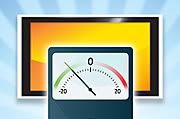 Large high-definition televisions are voracious electricity consumers. Some 50-inch plasmas demand in excess of 400 watts of power when turned on. That's more than a good-size, modern refrigerator requires, though the refrigerator stays on 24/7, so it probably devours more energy overall. The other components of your home theater--the DVR, the Blu-ray Disc player, and the separate surround-sound amplifier and speakers--have their own power demands. And the various parts of your home entertainment system suck juice even when they're "off," so that they can start up more quickly and so that you can turn them on via the remote control.
To minimize your home-theater bills, you need to examine both what you buy and how you use it. The good news is that you don't have to cut back on your entertainment hours in order to save money and to reduce your carbon footprint.
Buy Green
Here are some guidelines to consider when you're shopping for an HDTV.
Remember that small is beautiful: Everyone loves to watch a wall-size picture, but a bigger screen isn't better for the environment. On average, according to a study conducted by CNet, 42-inch plasma TVs use of 271 watts of electricity, versus 341 watts for 50-inch models. That's a difference of more than 20 percent in the smaller screen's favor.
Buy the right technology: Avoid plasma and you'll save electricity. A typical 52-inch LCD TV, uses 278 watts of power--only a tad more than a typical 42-inch plasma. Rear-projection sets (I know, they're not cool) save even more energy: On average, a 56-inch DLP TV runs at 171 watts. The new LED-lit LCDs save power, too. PC World Test Center tests show that the 55-inch Samsung LN55A950, the first such television that we've gotten our mitts on, uses about 38 percent less power than most 50-inch HDTVs.
Look for the Energy Star 3 label: When the Energy Star label appears on a TV, it means that the set lives up to the EPA's standard for energy efficiency. But some companies go beyond that standard. Sony, for example, says that all of the 1080p models in its 2009 lineup surpass Energy Star 3.0 requirements by 15 percent. Sony's VE5 Eco line goes even further; the 40-inch VE5 can have a power savings topping 50 percent, and the 52-inch model can save 65 percent. Check the Energy Star Web site for a list of qualifying HDTV models.
Look for the manufacturer's "green" angle: Many manufacturers have gone to great lengths to improve the energy efficiency of their 2009 models. Besides watching for the Energy Star designation, look for other energy saving options that a manufacturer may tout. For example, models in Sony's Bravia VE5 series--the Bravia KDL-52VE5, the Bravia KDL-46VE5, and the Bravia KDL-40VE5--feature high-efficiency HCFL backlighting, which uses reduced-size cathode tubes to improve power efficiency by 40 percent over other Sony LCDs. They also feature a 0-watt standby power switch, a light sensor with dynamic backlight control to reduce the screen's brightness for use in dim environments, and a motion sensor that turns off the TV if it doesn't detect any movement for a specified period of time.
Watch the power consumption of your components: When buying components, pay attention to the relative power supply and the reported watts consumed for each device. You can find these specs for many devices, including Blu-ray players and DVRs, on the back of the unit. That's how I found out that my Sony Blu-ray player uses 25 watts and that my Dish Network DVR uses 120 watts. Manufacturers' Web sites sometimes list this information, but it can be buried in obscure places. Though amplifiers/receivers proudly advertise their wattage per channel (more is better for sound quality), you can always save power by lowering the volume.
DVRs are a special case when it comes to power savings. You can't completely shut off a DVR without losing its scheduled recording ability, but an eco-conscious DVR will consume only a trickle of power when "off" and waiting for a signal from its timer or from the remote to come back to life. The popular DVR TiVo doesn't quite reach this ideal mix: Even in its hard-to-reach standby mode, it keeps spinning the hard drive and recording whatever is on two different channels. TiVo says that the DVR consumes about 39 watts when on, and "slightly less" in standby mode.
Watch Green
Whatever you own, adopting a few good habits will help you cut down on the amount of juice you use.
Turn down the brightness: Televisions leave the factory too bright because they're optimized for use in showrooms, not in your living room. Lowering the brightness setting will save electricity, increase the set's lifespan, and produce a better-looking picture.
Look for energy savings options: Many newer TVs may have options that let you sacrifice power for performance. You'll probably end up with an image that isn't as bright (as recommended above) and a TV that takes a few more seconds to warm up when you turn it on. But it's well worth it.
Use the TV's built-in speakers: Your separate surround-sound amplifier and speakers greatly enhance a big action flick, but they add nothing to the director's commentary. So turn on the amplifier only when the big sound makes a difference.
Truly turn off your gear: Your HDTV, amplifier, cable box, DVR, and DVD or Blu-ray Disc player all suck electricity when they're switched "off." Of those, only your DVR (and maybe your cable box, if it's separate from the DVR) has a legitimate reason to remain on call in this way: Without a stream of constant power, the DVR can't turn itself to fully active mode to record on schedule. The only advantage you get from the other gadgets that burn electricity continuously is the minor convenience of being able to turn them on with a remote and have them start up faster.
Adding a second surge protector to your home-theater setup will put a stake in the heart of those vampires. Plug your TV, disc player, and amplifier into one protector, and mount that one in a convenient location. Then plug your DVR and anything else into another. When you're done watching TV, turn off the first protector.
Alternatively you can achieve the same result with a single surge protector, but it has to be a smart one. The Monster GreenPower Digital PowerCenter MDP 900 and the Belkin Conserve AV can shut off some of the plugs on their strip while leaving others live.
Use that smaller TV: If you own two televisions, use the smaller, more modest one to view size-neutral programs. Case in point: Jon Stewart doesn't look any better on a 50-inch screen. Really.
Relax and enjoy the show: After all, if you don't like what you watch, you're wasting your time as well as your electricity.